| Document # | Title | Effective Date | Version |
| FHC-XX | How to Manage Secure User Session Timeouts | August 18, 2026 | 0.2 |
This article describes updates to session management and data security within the FORTH system. It is organized into the following sections:
Overview
This enhances the security of sensitive client data and ensures your team remains logged in while working on slow-loading pages. By enforcing a realistic minimum session length, the system prevents "timeout loops" that disrupt your workflow. We also implemented stricter browser security to ensure that once a user logs out, their Personally Identifiable Information (PII) cannot be viewed by clicking the browser's "Back" button.
Prerequisites
To manage these settings, you must have an account with administrative access to the FORTH CRM Settings page.
How to Access
- Contact your FORTH representative to set and activate the user session timeout duration.
How it Works
Here is what you need to know about your session:
Session limits and active usage. Session length is centrally managed and can range from 15 minutes (900 seconds) to a maximum of two hours (7,200 seconds). Enter the desired session duration in seconds in the Account column.
NOTE: If a value lower than 900 is entered, the system automatically defaults to 900 seconds to prevent accidental logouts.
-
Any active engagement, including refreshing the browser page or navigating to a new tab within the FORTH CRM, will automatically reset the session timer so that you stay signed in.
Click Save Account Settings at the top left of the page to apply the changes.
If your session reaches 75% of its total allowed time without activity, a warning dialog box with a live countdown timer (similar to the one shown below) appears in the center of the screen, showing exactly how much time remains before your session expires.
Multi-tab synchronization. If you work across multiple browser tabs, your session state syncs automatically. Selecting Continue on the warning timer in one tab instantly resets your session and dismisses the warning across all other open FORTH tabs.
IMPORTANT: FORTH CRM does not automatically save drafts. If the countdown timer reaches zero, you are signed out immediately, a "Session Expired" message is displayed, and any unsaved data on your active pages is lost. Always select Continue when prompted if you are still working.
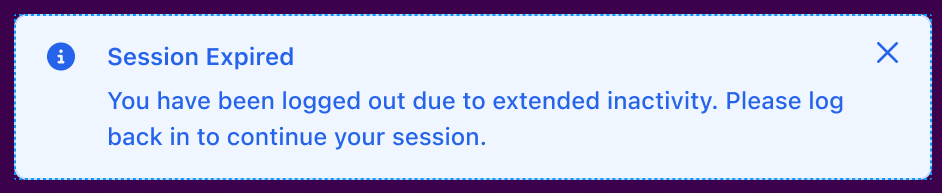
Security after sign-out. Whether you select Log Out or your session expires, all open tabs immediately redirect to the sign-in page. To protect sensitive information, the system clears the page content from your browser's memory. This ensures that unauthorized users cannot view your previous screens by using the browser's Back button.
Assistance
For further assistance, please reach out to support@setforth.com.
Article Revision History
| Version | Effective Date | Changes Made |
| Basic | 04/30/2026 | Initial release |
0.1 |
05/11/2026 |
Updated access information. |
0.2 |
08/18/2026 |
Minor formatting tweaks. |
|
|